
After many emails sharing my tutorial to set up GitHub on Windows 11 for RStudio, I’m publishing it online. There are other ways to do this, but this has always worked for me (and I still need it every time I try to set it up again).
Note: This is based on the Happy Git and GitHub for the useR guide, but includes only the steps I follow.
Create a GitHub Account
If you don’t have one yet, create a free account at github.com. Choose a professional, timeless name, it is hard to change it later.
Update R and RStudio
Check your current R version in the R console:
R.version.string
If you’re using a version older than R 4.0.0 (April 2020), you must update. Anyways, I would recomend updating R to the newest version from time to time (una vez al año no hace daño).
Download latest R and Rstudio versions: Posit RStudio Desktop Download
Install Git
Download Git for Windows from git-scm.com/download/win
Accept all default options during installation. You likely won’t ever need to open Git directly, RStudio will interface with it.
Configure Git with Your GitHub Account
Open a Terminal in RStudio (not the Console):
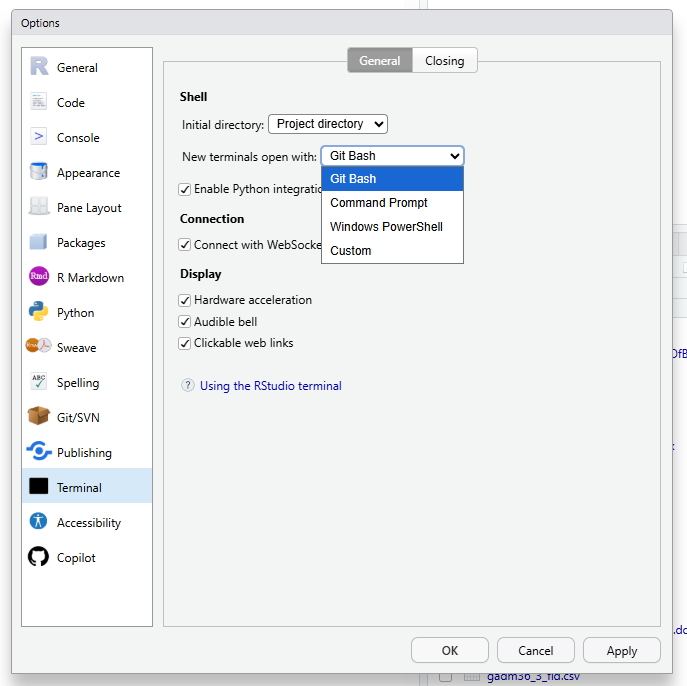
- Go to Tools > Global Options > Terminal
- Set “New terminals open with” to Git Bash
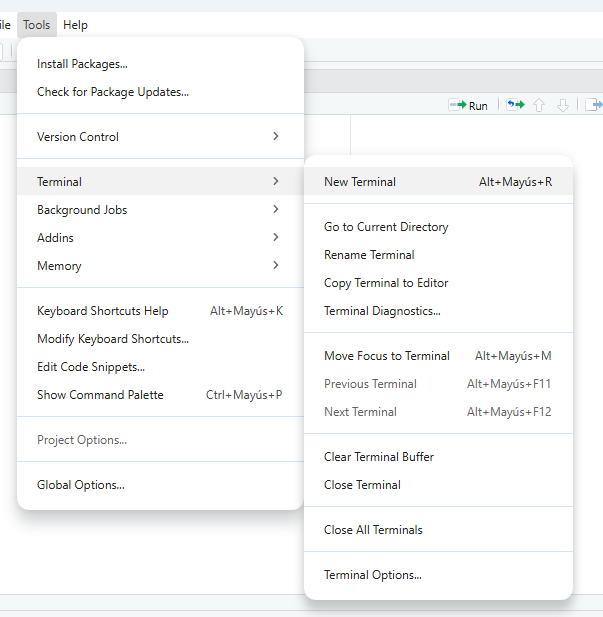
- Open a new terminal in Tools > Terminal > New Terminal
Run these commands in the terminal (replace with your information):
git config --global user.name ‘yourname’
git config --global user.email ‘yourmail@example.com’
git config --global --list
⚠️ Note: In Git Bash, you cannot use Ctrl+C/Ctrl+V. Instead, right-click to copy and paste.
Create a GitHub Repository
- Log into GitHub
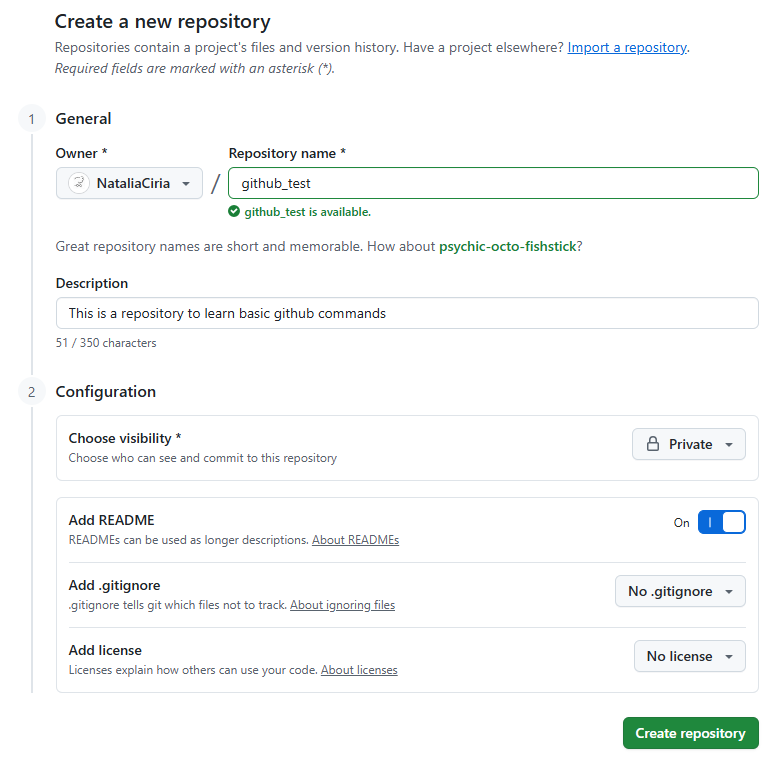
- Click New repository
- Configure:
- Name: Choose a descriptive name
- Visibility: Private (recommended for work projects, you can make it public later!)
- Initialize with: Check “Add a README file”
- .gitignore template: None (for now)
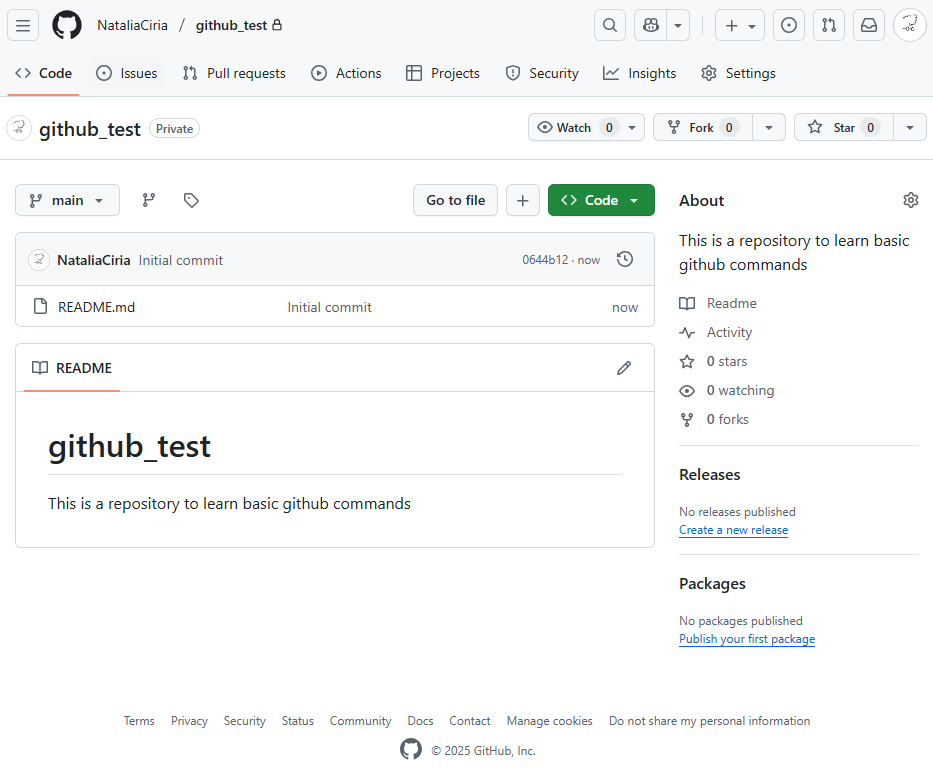
- View your new repository
Decide how are you going to access Github
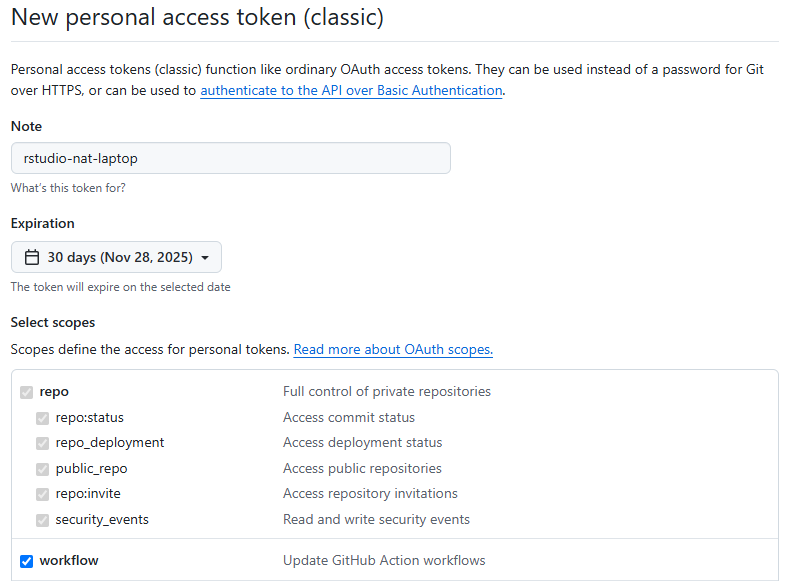
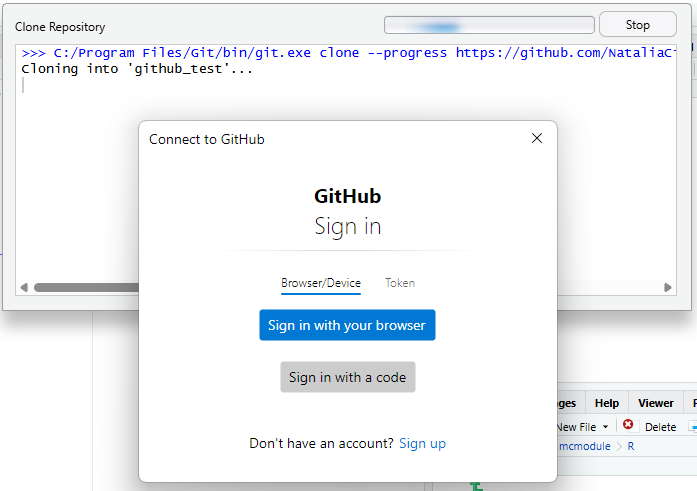
For security, I use my GitHub account on my personal desktop and a 30-day Personal Access Token (PAT) on shared computers or laptops I carry around. If you’re using your GitHub login, you can skip to the next step.
To generate a token:
- Go to github.com/settings/tokens
- Click Generate new token (classic)
- Give it a descriptive name
- Set expiration (30 days, 60 days, or custom)
- Select scopes: repo, user, gist, workflow
- Click Generate token
- Copy the token immediately—you won’t see it again
Create an R Project with Version Control
In RStudio:
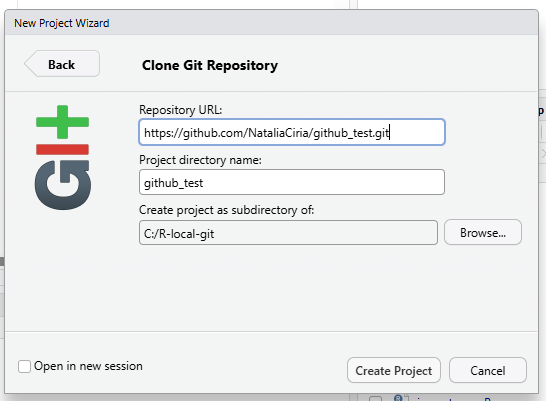
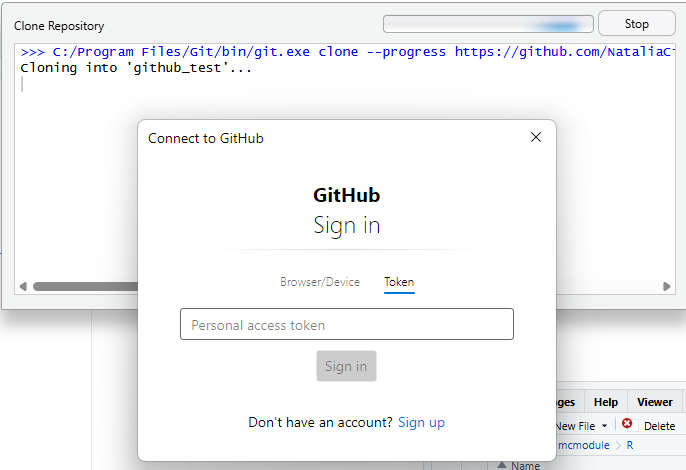
- File > New Project > Version Control > Git
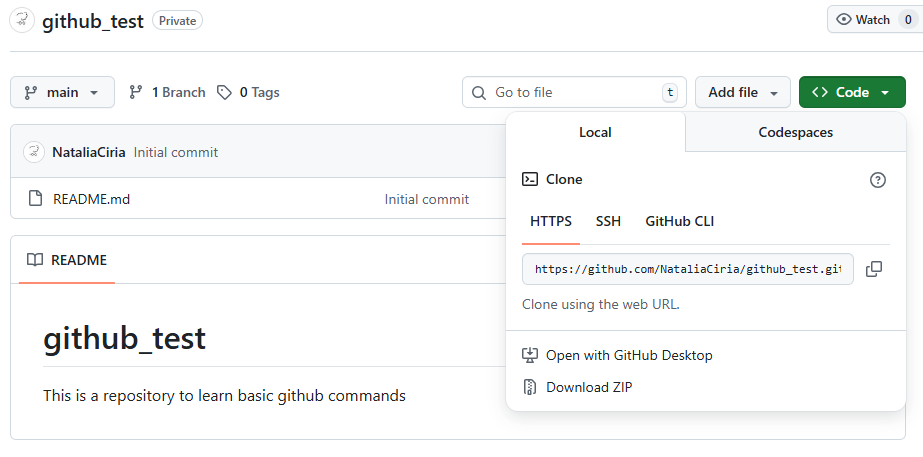
- In your GitHub repository (browser), click Code > Local > HTTPS and copy the URL
- Paste into Repository URL
- Choose a local directory for your project
⚠️ Important: Do NOT create your project in OneDrive, Google Drive, or other cloud sync folders. This can cause conflicts with Git. Create a dedicated local folder for Git repositories.
Choose whether to use GitHub login credentials or a PAT token (see previous section).
The Git Workflow (Commit, Push, Pull)
Once your project is set up, you’ll see a Git pane in RStudio.
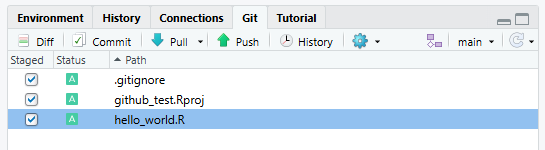
Make this workflow part of your routine each time you work with RStudio, especially if you work from different computers:
1. Pull (download changes from GitHub):
- Click the blue Pull arrow before starting work
- Ensures you have the latest version
2. Work on your scripts and files as usual
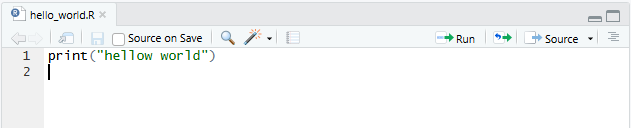
3. Pull again (always pull before committing or pushing)
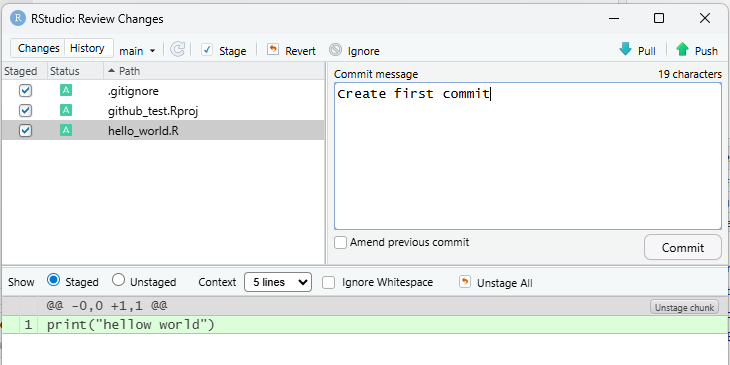
4. Commit (save changes locally):
- Click Commit in the Git pane
- Check files you want to include
- Write a commit message: Be descriptive (“Add data cleaning script” not “update”). Future you will thank current you.
- Click Commit
5. Push (upload changes to GitHub):
- Click the green Push arrow
- Your changes are now on GitHub
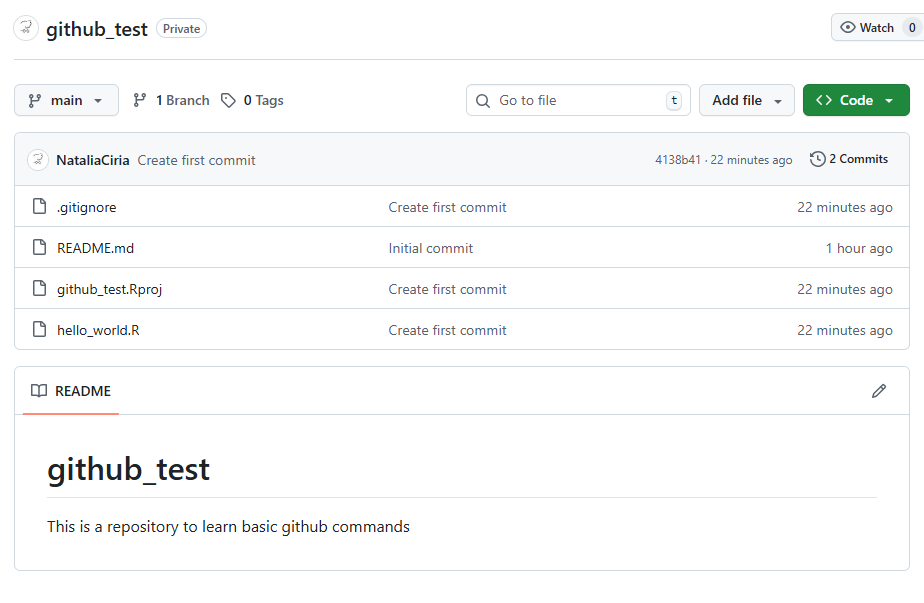
We did it!
And we’re done! Now you just need to keep pulling, committing, and pushing every day. Maybe one day I’ll write another blog post about more advanced Git features, like branching and merging (which might be obvious for software developers, but wasn’t for a veterinarian). I hope you found this useful. Here are some other helpful resources:
Learning Git and GitHub:
RStudio and Git:
Push the button and let me know before I
Get the wrong idea and go, you’re gonna
Miss the freak that I controlSugababes, “Push The Button” (2005)
Last updated: November 2025